Delete a Team
Efficiently managing your teams is key to maintaining an organized workspace. When a team including the server and sites is no longer needed, FlyWP offers a simple way to delete it, ensuring your environment remains uncluttered.
This guide will walk you through the steps to safely delete a team in FlyWP. Let’s get started.
How to Delete a Team in FlyWP
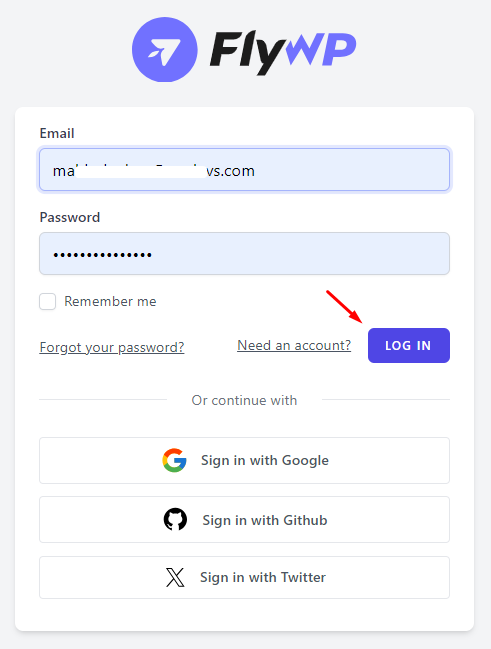
Section titled “How to Delete a Team in FlyWP”Step 1: First of all, Login to your FlyWP account by entering your Email and Password.
Step 2: You will see your FlyWP dashboard. Now click on the Down Arrow button from the top-right corner. Click on the “Team” you want to Delete. In our case, it is “Team Virtunus”
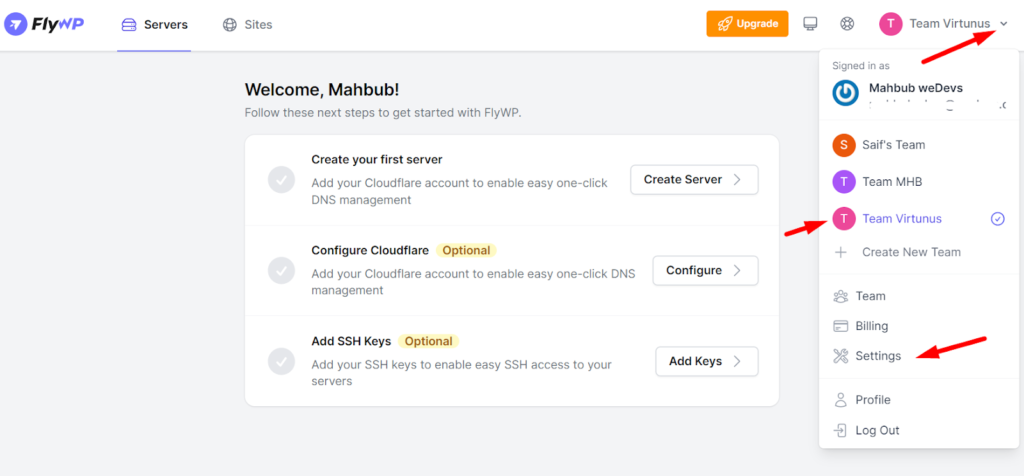
Now click on the “Setting” button below as shown in the screen.
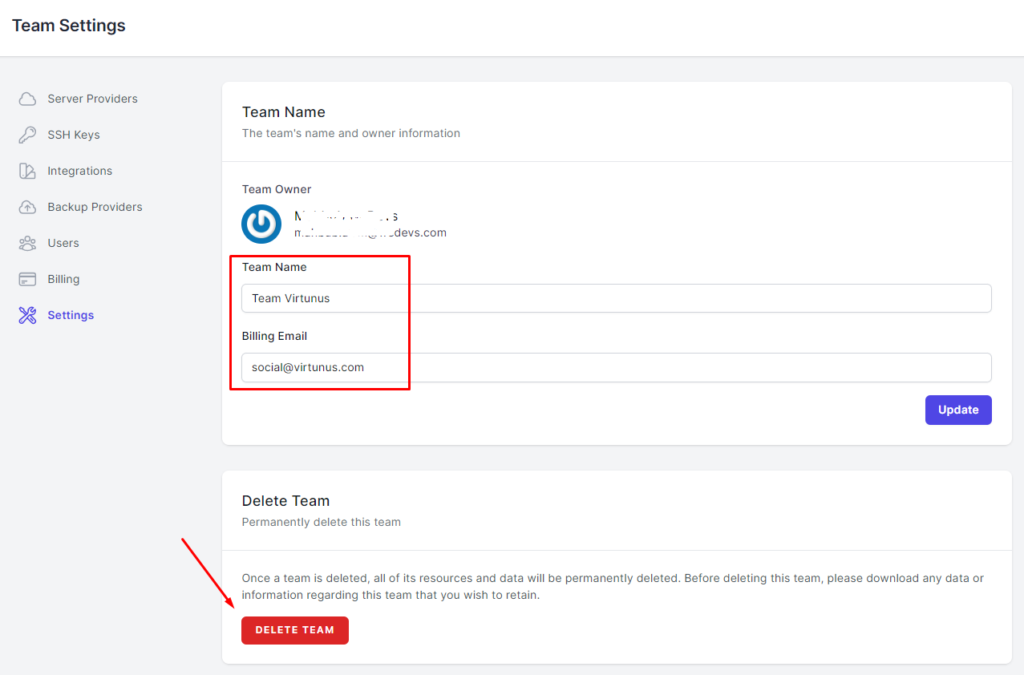
Step 3: You will see the following screen with the “Delete Team” button below the page. Click on there.
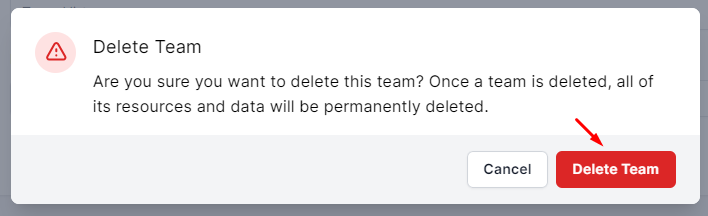
Step 4: You will see a pop-up modal that asks for your confirmation. Click on the “Delete Team” button or if you change your mind then click on the “Cancel” button.
You’re done! Your Team Deletion process has been completed.
In this way, you can delete a team in FlyWP. We hope you find this documentation helpful. Explore our other documentation for more guidelines. You can also contact us at support@flywp.com for any queries or further assistance.
Still stuck? How can we help?
View as Markdown